
GuidesMAG Box & STB Emulator
MAG Box & STB Emulator
MAG set-top boxes and the STB Emulator app — portal-based setup that we tie to your box’s MAC.
- 1Open Servers → PortalsOn the MAG main menu press the SET / SETUP button (or open Settings) → System Settings → Servers → Portals.
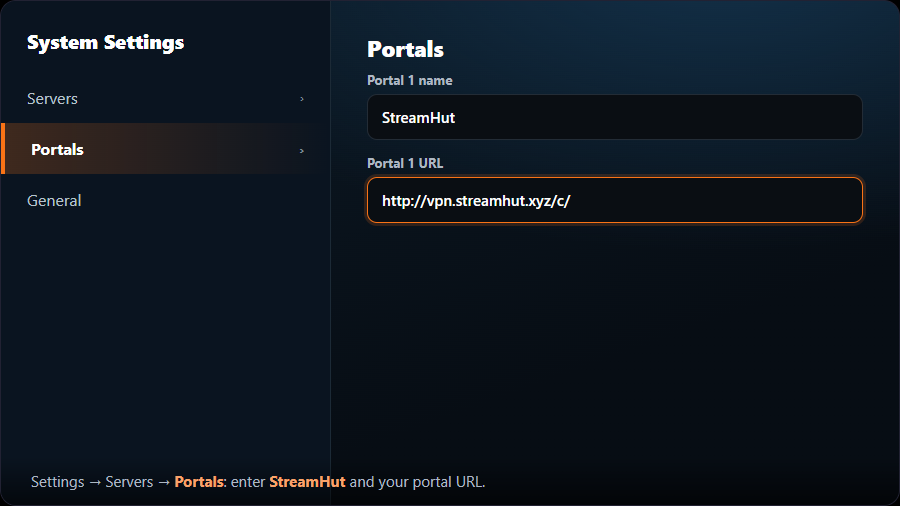
- 2Enter the portalIn “Portal 1 name” type “MojoOTT”. In “Portal 1 URL” paste the portal URL we provide. Press OK to save.
- 3Set the time serverOpen Settings → General (or Network) and set the NTP/time server to if your box asks for one.
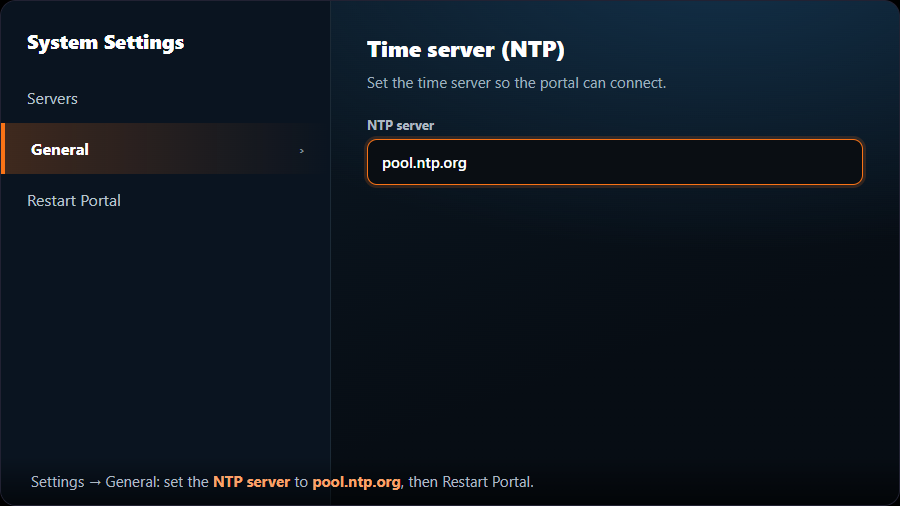
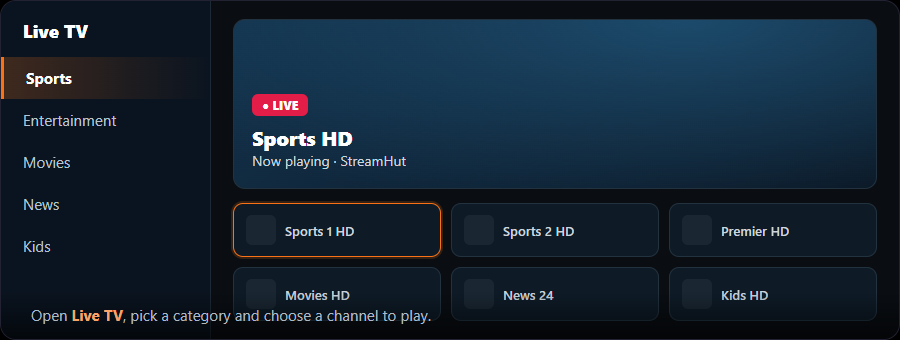
- 4Restart the portalPress EXIT a few times and choose “Restart Portal” (or reboot the box). Your MojoOTT channels load.
A MAG is locked to its MAC address (printed on the bottom of the box). Send us that MAC and we’ll register your portal before you start.