
GuidesSamsung & LG Smart TV
Samsung & LG Smart TV
Samsung (Tizen) and LG (webOS): install straight from the TV’s own app store, no extra box needed.
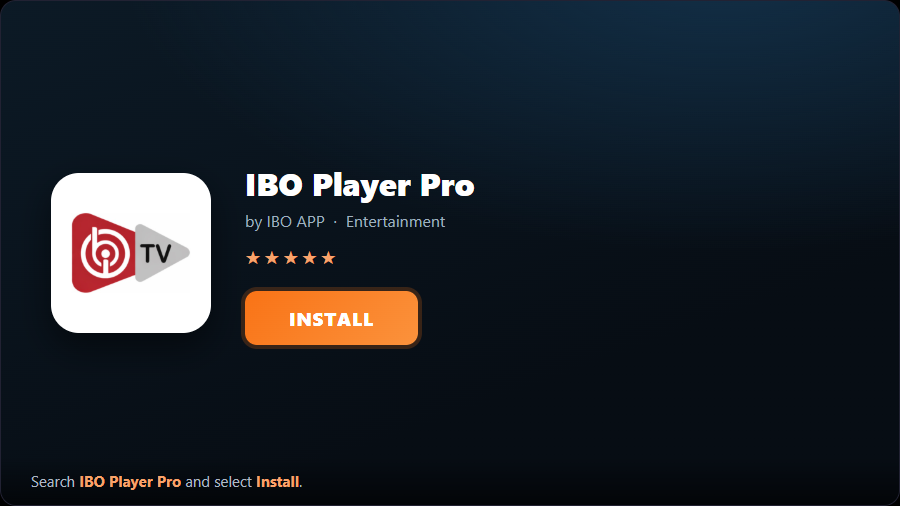
- 1Install IBO Player ProFrom your TV’s app store (Samsung Apps / LG Content Store) search “IBO Player Pro” and install it.
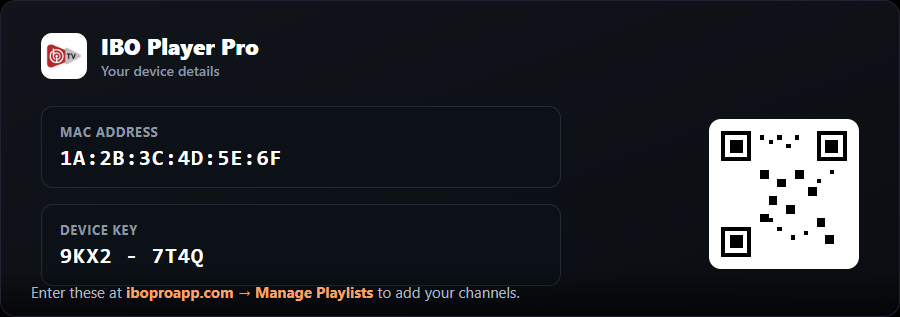
- 2Note your device detailsOpen the app. It shows your MAC Address and Device Key (and a QR code). Keep this on screen.
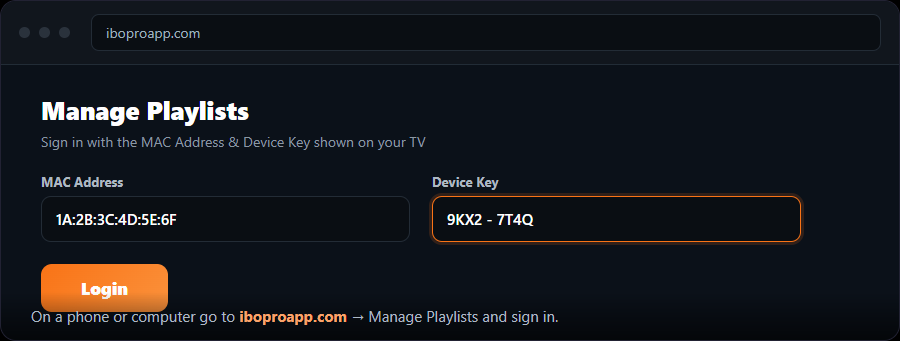
- 3Open the playlist managerOn a phone or computer go to → “Manage Playlists” and sign in with the MAC and Device Key from your TV.
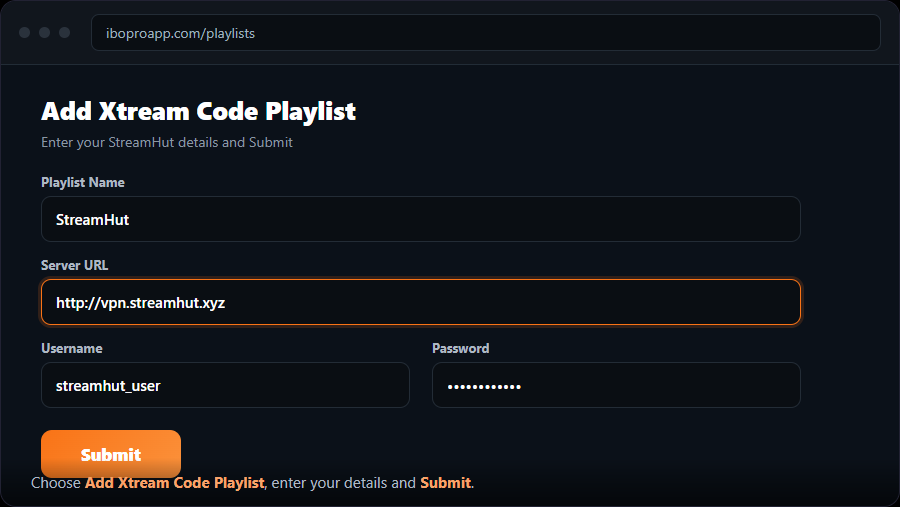
- 4Add an Xtream Codes playlistChoose “Add Xtream Code Playlist”, name it “MojoOTT”, enter your Server URL, Username and Password, and Submit. (Or “Add M3U”.)
- 5Reload on your TVRestart IBO Player Pro. Your MojoOTT channels appear.
Free for 7 days, then a one-time fee per TV on .